Shortcut Keys
Barchart Trader contains a number of keyboard shortcuts to make using the application easier. A list of these shortcuts can be viewed either by pressing the ? key, or by clicking the  Application Menu (top right corner of the application) and then selecting Help.
Keyboard Shortcut Keys include:
| Key Command | Description |
|---|---|
| Application Commands: | |
| ? | Display Keyboard Keys Help |
| ESC | Close Window |
| CTRL + SHIFT + Plus | Temporarily increase application scale |
| CTRL + SHIFT + Minus | Temporarily decrease application scale |
| CTRL + SHIFT + F | Toggle Full-screen mode |
| Workspace Commands: | |
| F1 | Show the Panel Selector |
| F2 | Show Symbol Search |
| F3 | Create New Workspace |
| F4 | Launch new chart |
| F5 | Launch new quote |
| F6 | Launch price alerts |
| Trading Commands: | |
| F7 | Launch order ticket |
| F8 | Launch DOM trader |
| F9 | Launch order summaries |
| Panel Commands (all panels): | |
| F11 | Maximize / restore the active panel |
| F12 | Copy image of active panel to clipboard |
| CTRL + Up / Down arrow | 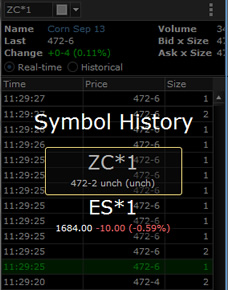 For panels that show only one symbol (Quote, Time & Sales, etc.), this allows you to toggle between other symbols that you've recently viewed in this panel. For panels that show only one symbol (Quote, Time & Sales, etc.), this allows you to toggle between other symbols that you've recently viewed in this panel. When you use the up/down arrows to select one of the symbols displayed, the panel is activated with the selected symbol. |